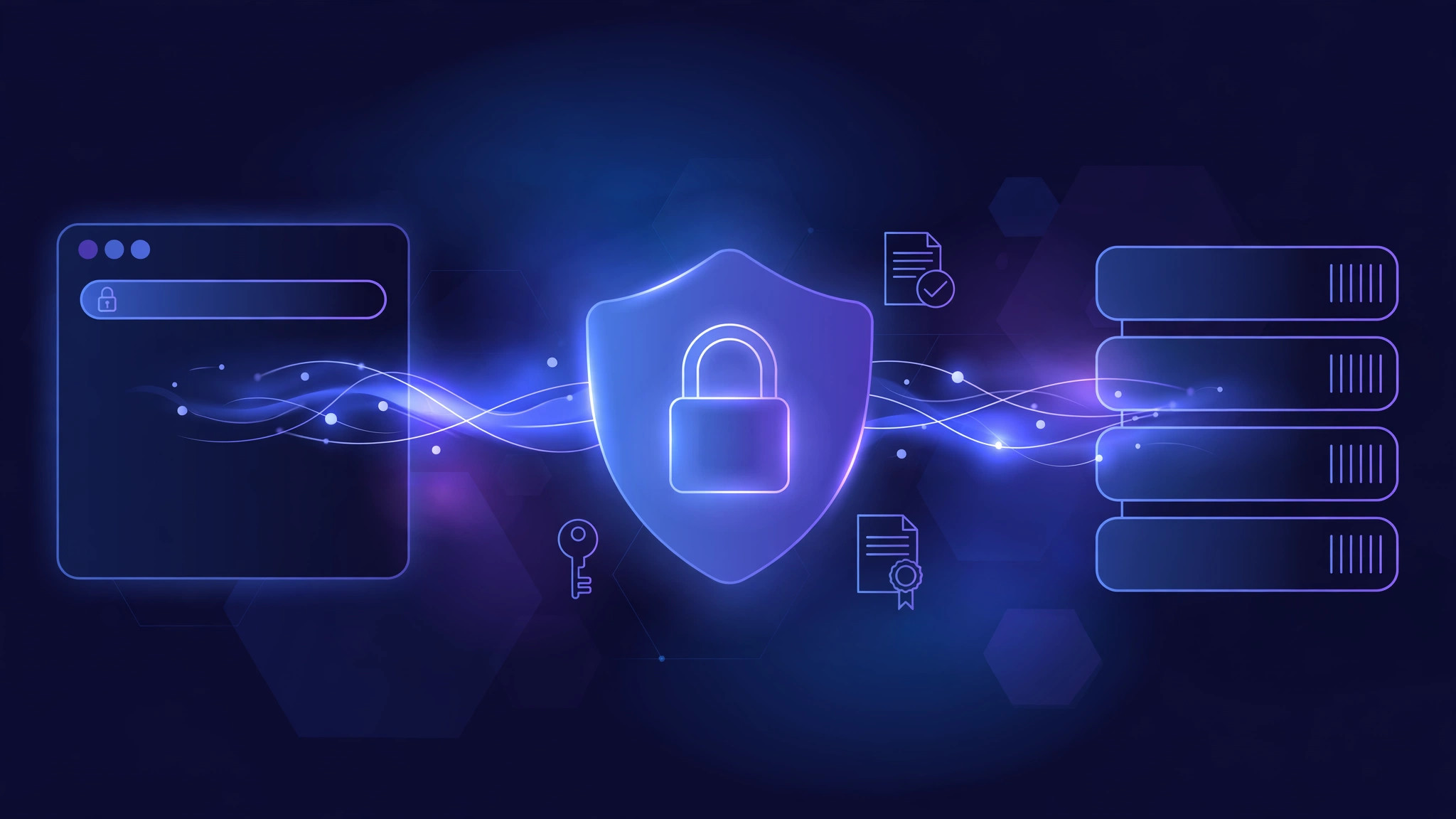
SSL (Secure Sockets Layer) and TLS (Transport Layer Security) are the encryption protocols that turn plain HTTP into secure HTTPS. They scramble everything travelling between a browser and a website, so passwords, card details and private messages cannot be read or changed by anyone in between. When you see the padlock icon in your browser's address bar, SSL/TLS is doing its job.
This guide explains what SSL and TLS actually are, how the handshake works step by step, the types of certificates, and why every website needs HTTPS in 2026. No cryptography degree required.
SSL vs TLS: What Is the Difference?
SSL is the older protocol, created by Netscape in the 1990s. TLS is its successor, standardised by the IETF. Every version of SSL (SSL 2.0 and SSL 3.0) is now broken and deprecated, and nobody should use them. When people say "SSL certificate" today, they almost always mean a TLS certificate. The name stuck; the protocol moved on.
The versions that matter now are TLS 1.2 and TLS 1.3. TLS 1.3, published in 2018, is faster and safer: it completes the handshake in one round trip instead of two, and it removed old, weak cipher suites entirely. If your server still negotiates TLS 1.0 or 1.1, that is a configuration problem, not a compatibility feature. Modern browsers have disabled those versions.
How SSL/TLS Works: The Handshake in 5 Steps
Before any page data moves, the browser and the server perform a short negotiation called the TLS handshake. It takes a fraction of a second. Think of it like two strangers agreeing on a secret code before they start talking, while checking each other's identity papers first.
- The browser says hello. Your browser sends a "ClientHello" message listing the TLS versions and cipher suites it supports, plus a random number used later in the key exchange.
- The server replies with its certificate. The server picks a cipher suite both sides support and sends its SSL certificate, which contains its public key and its domain name, signed by a trusted Certificate Authority.
- The browser verifies the certificate. Your browser checks that the certificate is issued by a trusted authority, that it matches the domain you typed, and that it has not expired or been revoked. If anything fails, you get the "Your connection is not private" warning.
- Both sides agree on a session key. Using asymmetric encryption (the public key from the certificate), the browser and server securely agree on a single shared session key. Only these two parties know it.
- Encrypted conversation begins. From here on, all data is encrypted with the session key using fast symmetric encryption. The page, your login details, cookies, everything is scrambled in transit.
That switch from asymmetric to symmetric encryption is the clever part. Asymmetric encryption is secure but slow, so it is used only to agree on the key. Symmetric encryption is fast, so it carries the actual data. You get the security of public-key cryptography at the speed of symmetric ciphers.
The Three Things TLS Gives You
TLS is not just encryption. It provides three separate guarantees, and all three matter:
- Confidentiality (encryption). Nobody between you and the server can read the data. On public Wi-Fi, an attacker can see that you visited a site, but not what you typed or read there.
- Authentication (identity). The certificate proves the server is who it claims to be. Without it, an attacker could impersonate your bank's website and you would have no way to tell.
- Integrity (tamper protection). Every message carries a check value. If anyone alters data in transit, the receiver detects the mismatch and drops the connection. A man-in-the-middle cannot silently inject malicious code into a page.
Types of SSL Certificates
Certificates differ by how much identity checking the Certificate Authority (CA) performs before issuing them:
- Domain Validated (DV). The CA only checks that you control the domain, usually by email or a DNS record. Issued in minutes. Free from Let's Encrypt. Enough for most blogs and small sites.
- Organization Validated (OV). The CA also verifies the business exists as a legal entity. Takes a few days and costs money. Common for company websites.
- Extended Validation (EV). The strictest check, including legal, physical and operational verification. Historically shown with a green company name in the address bar; modern browsers no longer display that, so EV has lost much of its visible value.
- Wildcard certificates. Cover a domain and all its subdomains, for example *.example.com. One certificate for your main site, blog, shop and API subdomains.
- Multi-domain (SAN) certificates. Cover several unrelated domains in a single certificate, useful when one server hosts multiple brands.
For encryption strength, a free DV certificate from Let's Encrypt is identical to an expensive EV certificate. The difference is only in how much identity was verified, not in how strong the encryption is.
How a Certificate Is Issued
Getting a certificate is straightforward, and with Let's Encrypt it is free and automated:
- You generate a private key on your server and a Certificate Signing Request (CSR) containing your domain name.
- The CA verifies you control the domain. Let's Encrypt does this automatically, for example by asking you to place a specific file on your server or add a DNS record.
- The CA signs and issues the certificate, valid for 90 days with Let's Encrypt, or up to 398 days with most paid CAs.
- You install the certificate on your web server (Nginx, Apache, Caddy) and enable HTTPS.
- A renewal tool such as Certbot renews it automatically before expiry, so the site never goes down with an expired certificate.
HTTP vs HTTPS: What Actually Changes?
- HTTP: data travels as readable plain text. Anyone on the network path, a compromised router, a malicious Wi-Fi hotspot, can read or modify it.
- HTTPS: the same HTTP protocol, but wrapped in a TLS-encrypted tunnel. The data is unreadable to everyone except the browser and the server.
- Port: HTTP uses port 80 by default; HTTPS uses port 443.
- Browser treatment: browsers label HTTP sites "Not Secure" and warn before form submissions. HTTPS sites get the padlock icon.
- SEO: Google has confirmed HTTPS as a ranking signal since 2014. It is a small signal, but combined with the trust effect it is an easy win.
Note that HTTPS does not make a website itself safe. A phishing site can have a perfectly valid certificate. The padlock means your connection to that site is private, not that the site is honest.
Benefits and Real-World Use Cases
- Login pages and user accounts: passwords and session cookies travel encrypted, so they cannot be stolen on shared networks.
- E-commerce and payments: card details and checkout data are protected end to end. Payment processors require HTTPS as a baseline.
- Contact and lead forms: anything a visitor types into your site, names, phone numbers, business enquiries, stays private.
- APIs and webhooks: server-to-server traffic over HTTPS cannot be intercepted or tampered with in transit.
- SEO and trust: visitors trust a site with a padlock more than one flagged "Not Secure", and search engines prefer HTTPS pages.
- Modern browser features: geolocation, push notifications, service workers and other powerful web APIs only work on secure (HTTPS) origins.
Common Misconceptions About SSL/TLS
"The padlock means the site is trustworthy." Wrong. The padlock only proves the connection is encrypted and the certificate matches the domain. Attackers routinely get free certificates for lookalike domains. Check the domain name itself, not just the padlock.
"HTTPS means the site cannot be hacked." Wrong. TLS protects data in transit. It does nothing against vulnerabilities in the website's code, weak passwords, or a compromised server. Security is layered; TLS is one layer.
"SSL slows my website down." Outdated. With TLS 1.3 and HTTP/2, the handshake overhead is a few milliseconds, and HTTPS is required for HTTP/2, which is usually faster than plain HTTP. Any performance cost is negligible on modern hardware.
"Free certificates are less secure." Wrong. A Let's Encrypt certificate uses the same encryption as a certificate costing hundreds of dollars per year. The only real differences are validation level, validity period and warranty, not cryptographic strength.
How to Check a Site's Certificate Yourself
You can inspect any site's certificate in seconds. In your browser, click the padlock icon next to the address bar, then "Connection is secure" and "Certificate is valid" to see who issued it, which domains it covers, and when it expires.
From a terminal, OpenSSL shows the same information directly:
openssl s_client -connect example.com:443 -servername example.comThis prints the certificate chain, the TLS version negotiated, and the cipher in use. Press Ctrl+C to exit. A quick way to confirm a site serves HTTPS correctly is a verbose curl request:
curl -vI https://example.comLook for the SSL connection using TLSv1.3 line in the output and the HTTP 200 response that follows.
Conclusion
SSL and TLS are the reason the modern web works. They encrypt your data, prove a server's identity, and guarantee nothing was changed on the way. TLS 1.3 made the whole process faster and safer, and with free certificates from Let's Encrypt, there is no reason left for any website to run on plain HTTP in 2026. If your site still shows "Not Secure", enabling HTTPS is the single highest-value security task on your list.
If you need help securing your website or server, XpertBees sets up SSL/TLS, Nginx and full server hardening for businesses. Get in touch through xpertbees.in and we will take care of it.